
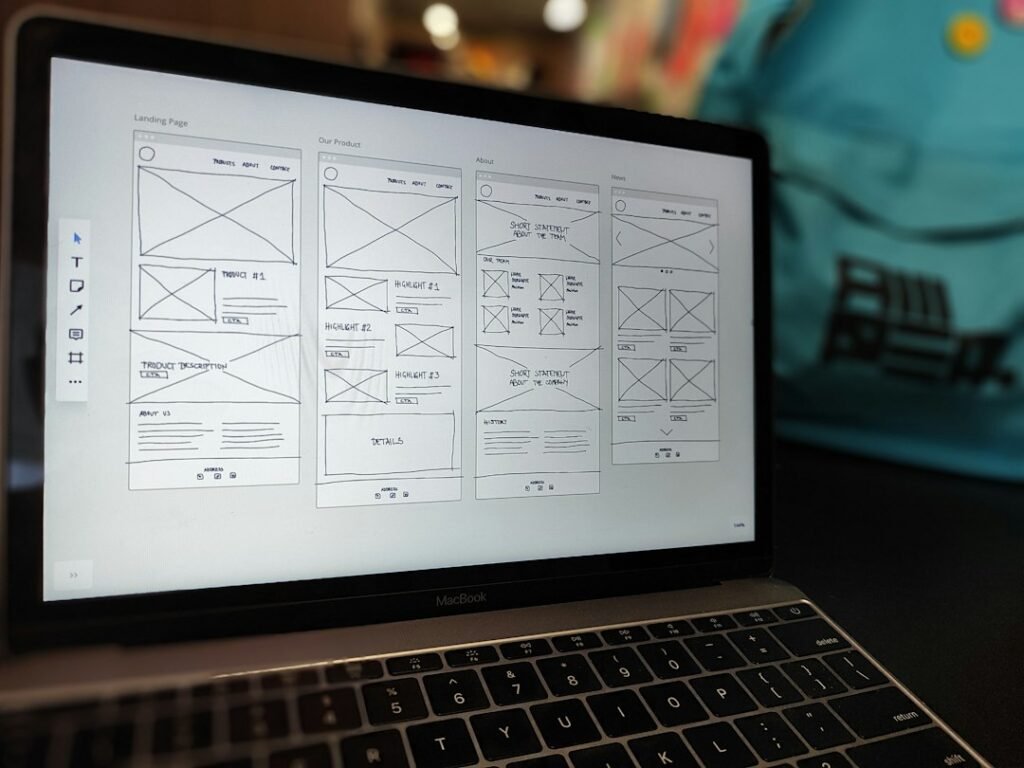

You spent hours designing the perfect blog layout: Content on the left, Sidebar on the right. You publish your post, ready for visitors. But when you check the live site, the sidebar is gone.
You scroll down… down… down. Finally, you find it. Your sidebar—containing your email opt-in, ads, and bio—is smashed awkwardly at the very bottom of the page, below the comments.
This is called the “Sidebar Drop.” It is one of the most frustrating visual errors in WordPress because it makes your site look amateurish. Worse, it destroys your revenue. If your ads are in the sidebar and nobody sees them, you make $0.
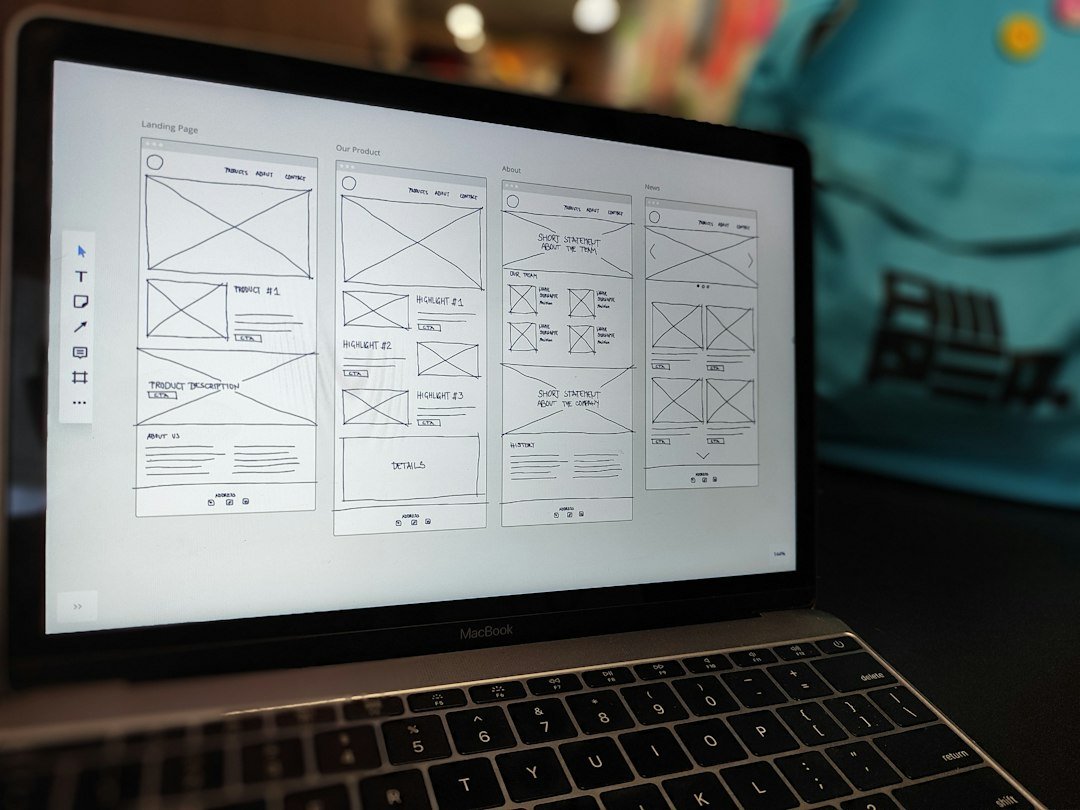
The Physics of Web Design
Websites are boxes inside boxes: Container Width is 100%, Content is typically 70%, and Sidebar is 30%. If your Content + Sidebar exceeds 100%, the Sidebar physically cannot fit. Gravity takes over, and it drops to the next available line.
Cause 1: Unclosed HTML Tags (The #1 Culprit)
This is responsible for 90% of sidebar errors. If you recently edited a post and forgot to close a <div> tag, the “box” of your content area never ends. It swallows the sidebar and pushes it down.
How to Fix:
- Isolate the Issue: Does this happen on all pages, or just one? If it’s one page, the error is in that specific post’s content. If it’s all pages, the error is in your theme files (usually footer.php or sidebar.php).
- Use a Validator: Go to the W3C Markup Validation Service, paste your URL, and look for the error “Unclosed element div”.
- Manual Fix: Switch your WordPress Editor to “Text” view and find the missing </div> at the end of your content.

- ✅ Clean Code: Fixes the actual root problem.
- ❌ Tedious: Finding one missing tag in 2,000 lines of code takes patience.
Cause 2: CSS Width & Padding (The Math Problem)
If you customized your CSS recently, you might have broken the math. Content Width is 700px, Sidebar Width is 300px, and Total Space Available is 1000px. If you add 10px of padding to the Content, the new width is 710px. 710px + 300px = 1010px — it no longer fits in the 1000px container, so the sidebar drops.
The Fix:
- Go to Appearance > Customize > Additional CSS.
- Reduce the width of your content area by 2-3% to create “wiggle room.”
.content-area {
    width: 68%; /* Reduced from 70% */
}
.sidebar {
    width: 30%;
}
Pro Tip: Use the CSS rule box-sizing: border-box; This forces the browser to include padding inside the width calculation, preventing this error forever.
Cause 3: The “Float” Glitch
In older themes that use float: left and float: right, an element inside your content (like a large image) might be “clearing” the float.
The Fix: Check if you have any images in your post set to “Align Center” or “Full Width.” Change them to “Align None” or “Align Left.” Sometimes a full-width image acts like a wall, forcing everything after it (including the sidebar) to drop.
Frequently Asked Questions
Can I just install a plugin to fix this?
No. This is a code structure issue. A plugin cannot guess where your missing </div> tag belongs. You must validate the code.
Why does it happen only on Mobile?
On mobile, the sidebar is supposed to drop to the bottom. This is called Responsive Design. This guide only applies if the sidebar drops on Desktop screens.
Conclusion
The Sidebar Drop is almost always a math error or a typo. Validate your HTML, check your CSS widths, and ensure you haven’t exceeded 100%.